
Note
AAHC installation is not supported on UEFI-based systems.
Go to Applied Analytics in the Logpoint Help Center.
Enter your credentials and log in.
Click Applied Analytics For Healthcare v1.8.0 ISO.
Download the ZIP file from Download.
Extract the ZIP file to obtain the file.
Boot your system with the ISO file.
On Network connections, you can manually configure the network interfaces or proceed with the default configurations. By default, AAHC uses the IPv4 protocol with Automatic (DHCP) configurations for the first network interface.
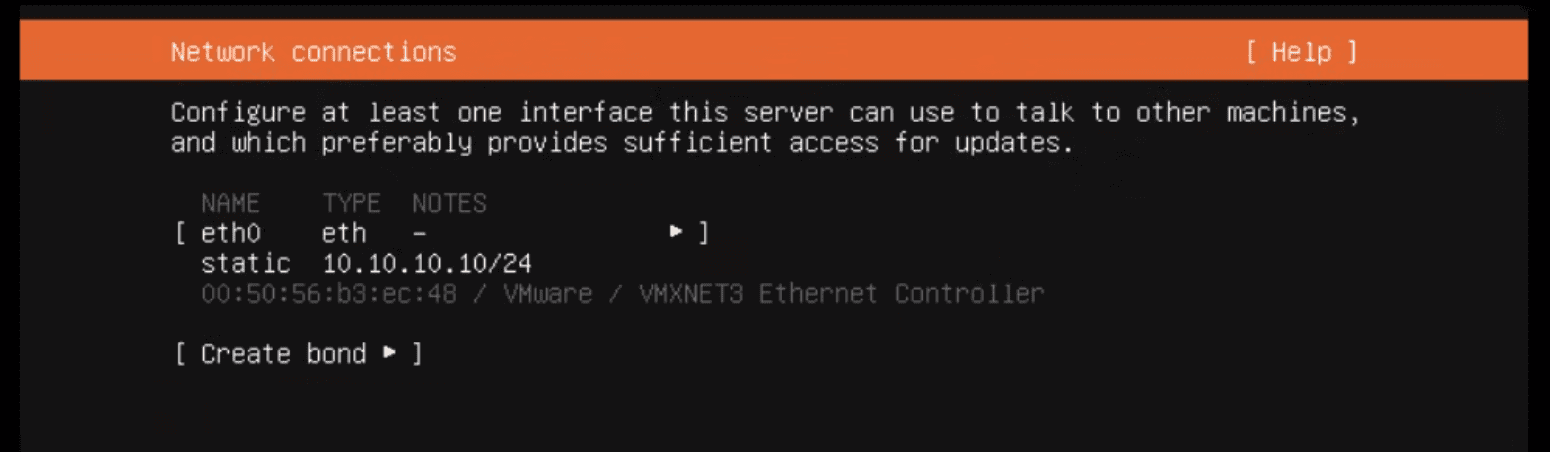
Network connections screen
Note
If you have multiple network interfaces, you must manually enable and configure each successive interface.
To learn how to configure network interfaces, go to Configuring network interfaces.
Click Done.
The AAHC ISO automatically partitions your storage devices for the installation using the following sizes:
Partition |
Mount Point |
Size |
|---|---|---|
boot |
/boot |
1GB |
swap |
8GB |
The remaining space is used for the following volumes:
Volume |
Mount Point |
Size |
|---|---|---|
root |
/ |
20GB |
application |
/opt |
20% |
storage |
/opt/aahc/storage |
All the remaining space |
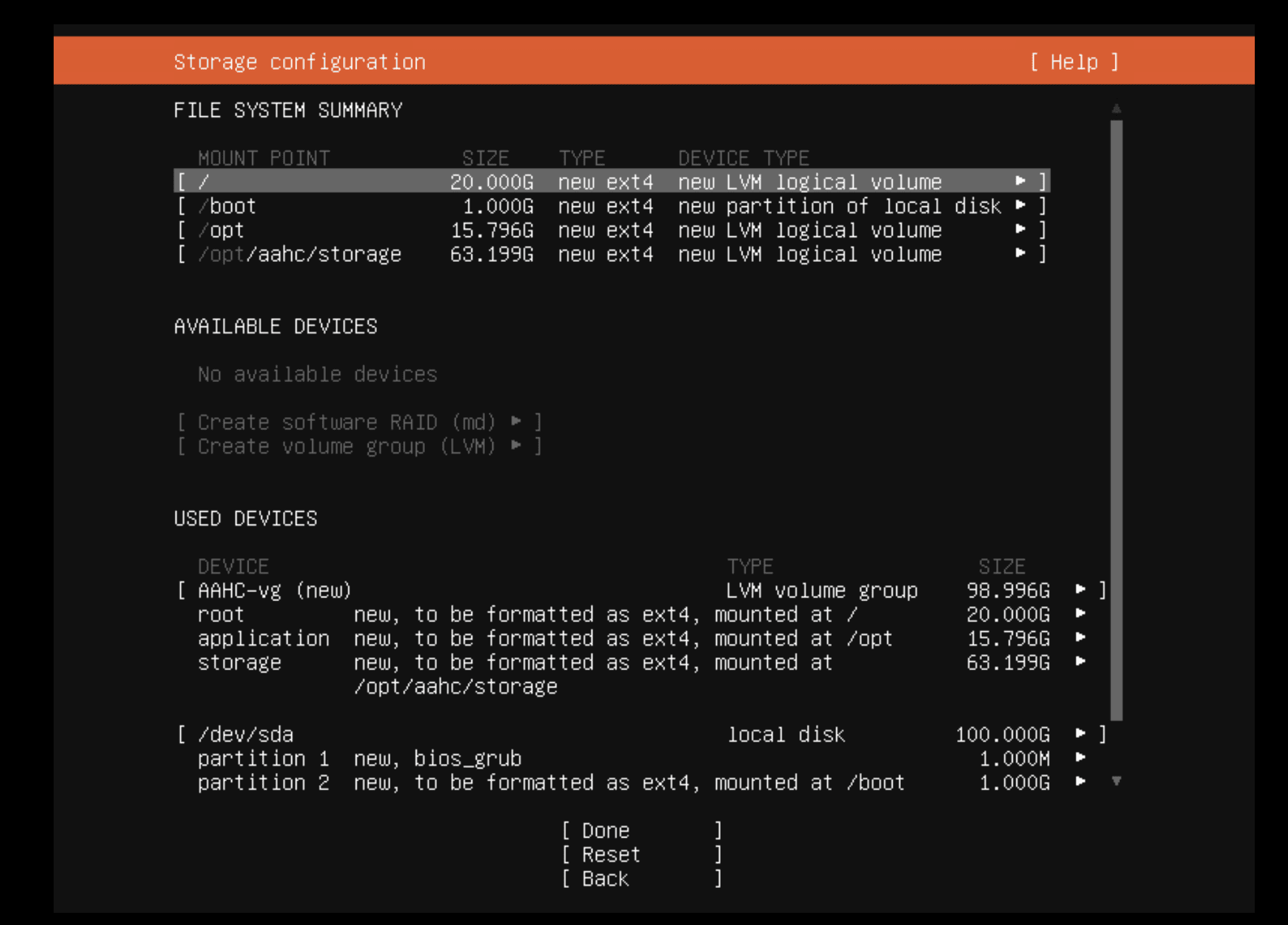
Automatic partitioning of storage devices
Note
You can manually customize the storage devices by selecting Reset. To learn more, go to Customizing storage partitions during installation.
Select Done.
Warning
The installation process cleans the disk entirely. Make sure you backup your files before installing AAHC.
Select Continue to start the installation process.
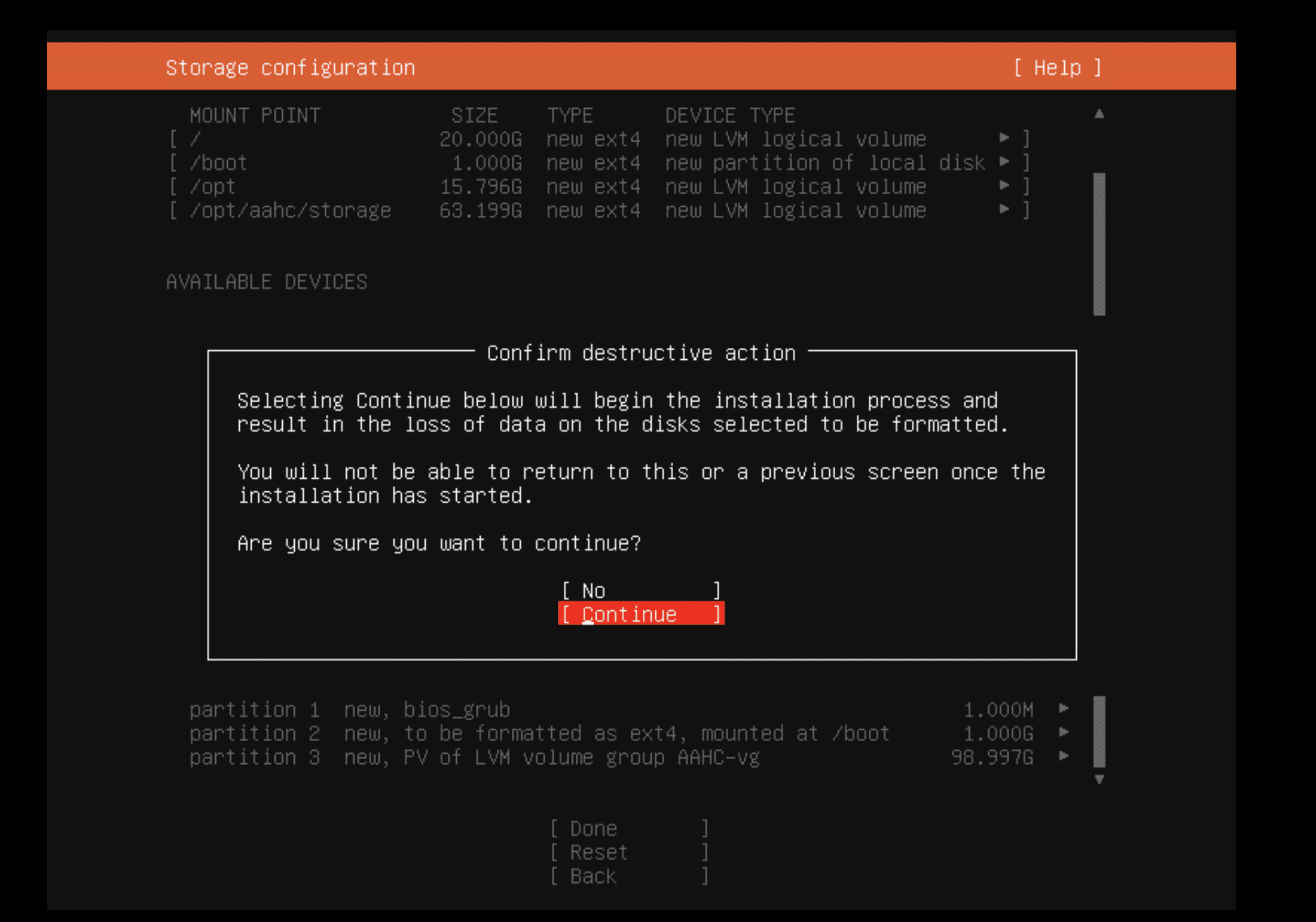
Starting the installation process
Select Reboot Now when prompted.
Note
The system reboots once more to complete the installation.
If the installation process fails, you must erase all the data in the disk before reinstalling AAHC.
After the installation completes, you must either manually eject the boot disk or select the option to boot from the hard drive from the Boot Manager. If you don’t, the entire process will repeat.
Log in using the following credentials:
Username: web-admin
Password: changeme
Change the password immediately using the passwd command.
The README.txt file in the home directory of the web-admin user gives you an overview of the actions that can be carried out.
Use the ifconfig command to view the IP address of the installed AAHC machine.
Enter the IP address in your browser to access the AAHC Interface. Log in with the following credentials:
Username: admin
Password: !am@aaHc
Change the password immediately.
To configure a network interface, select the relevant interface.
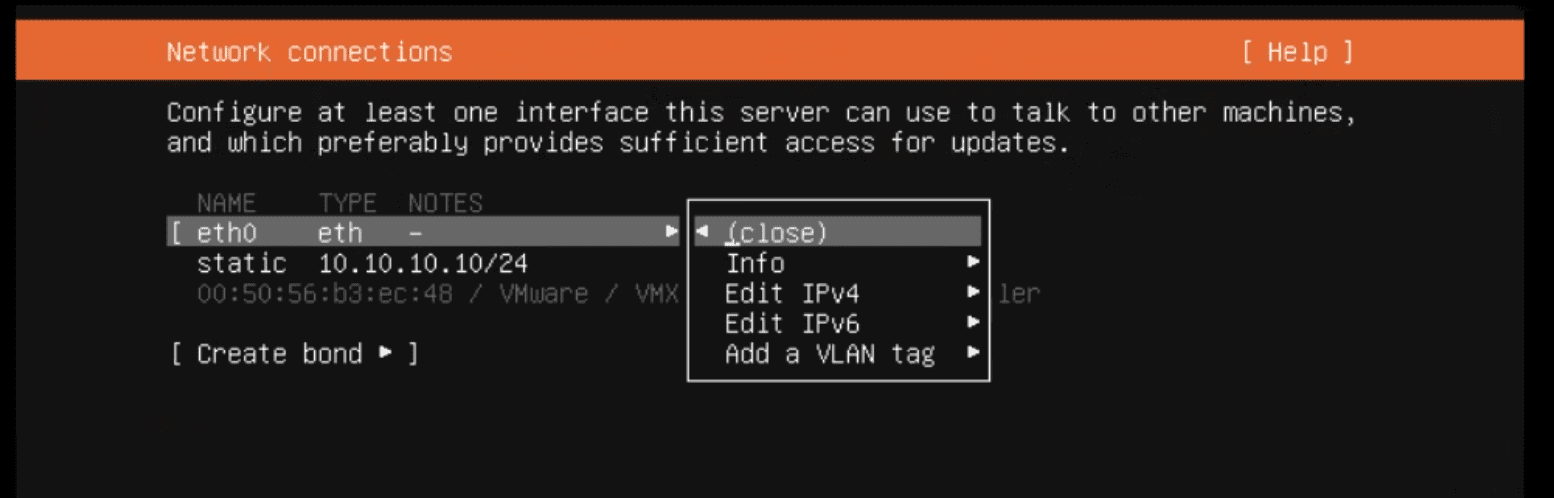
Configuring eth0 interface
Select Edit IPv4.
Select a Method.
If you choose Automatic (DHCP), the network interface settings are automatically set.
If you choose Manual, enter a Subnet, Address, Gateway, Name servers, and Search domains.
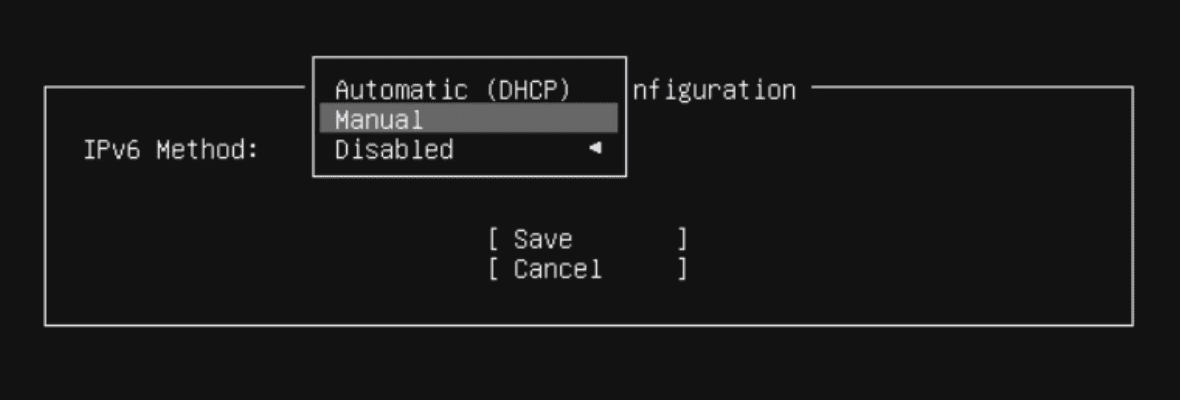
Configuring network connection
Select Save.
In Storage Configuration, select Reset.
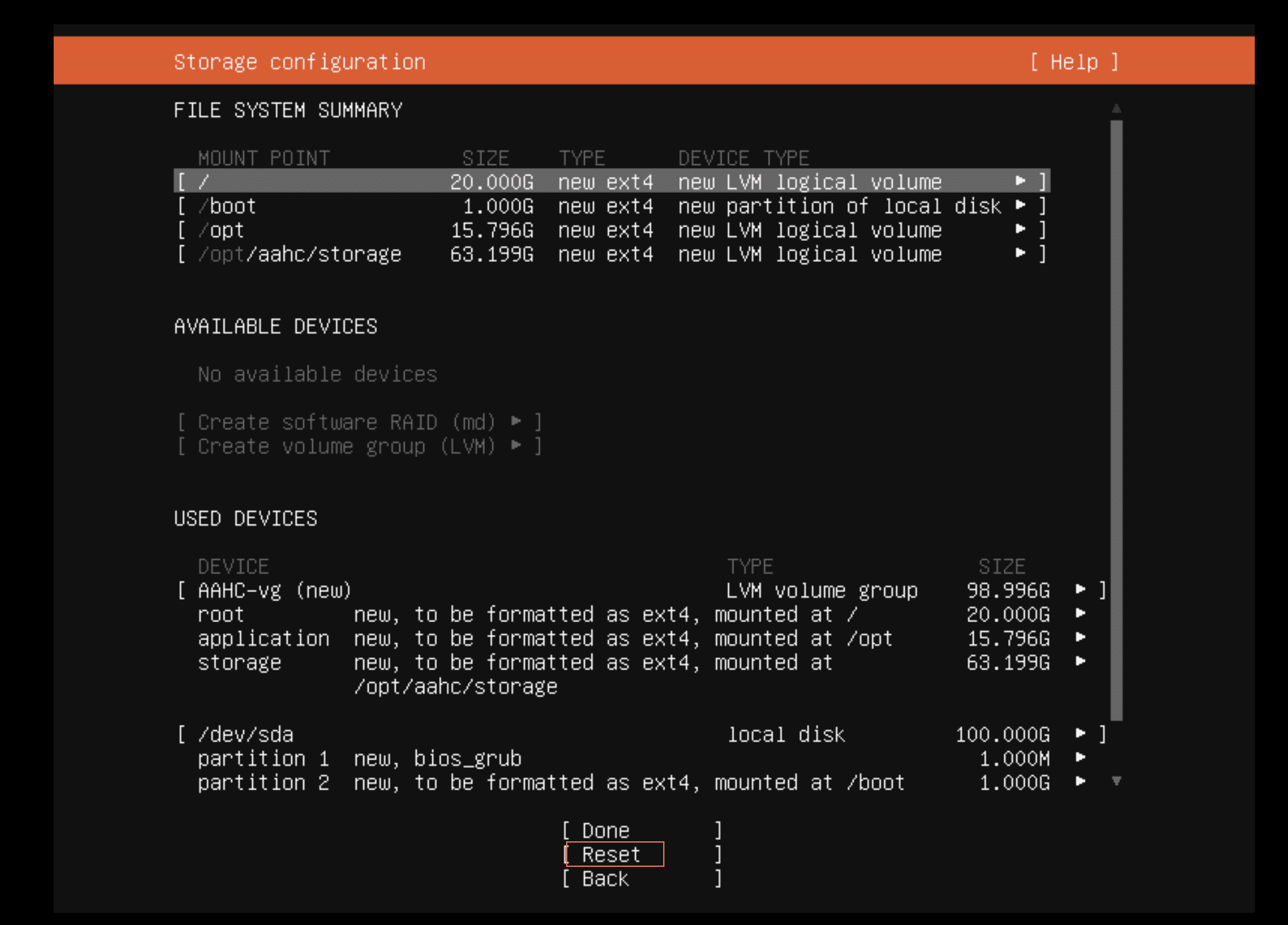
Automatic partitioning of storage devices
Select Use As Boot Device for the device you want to boot AAHC on.
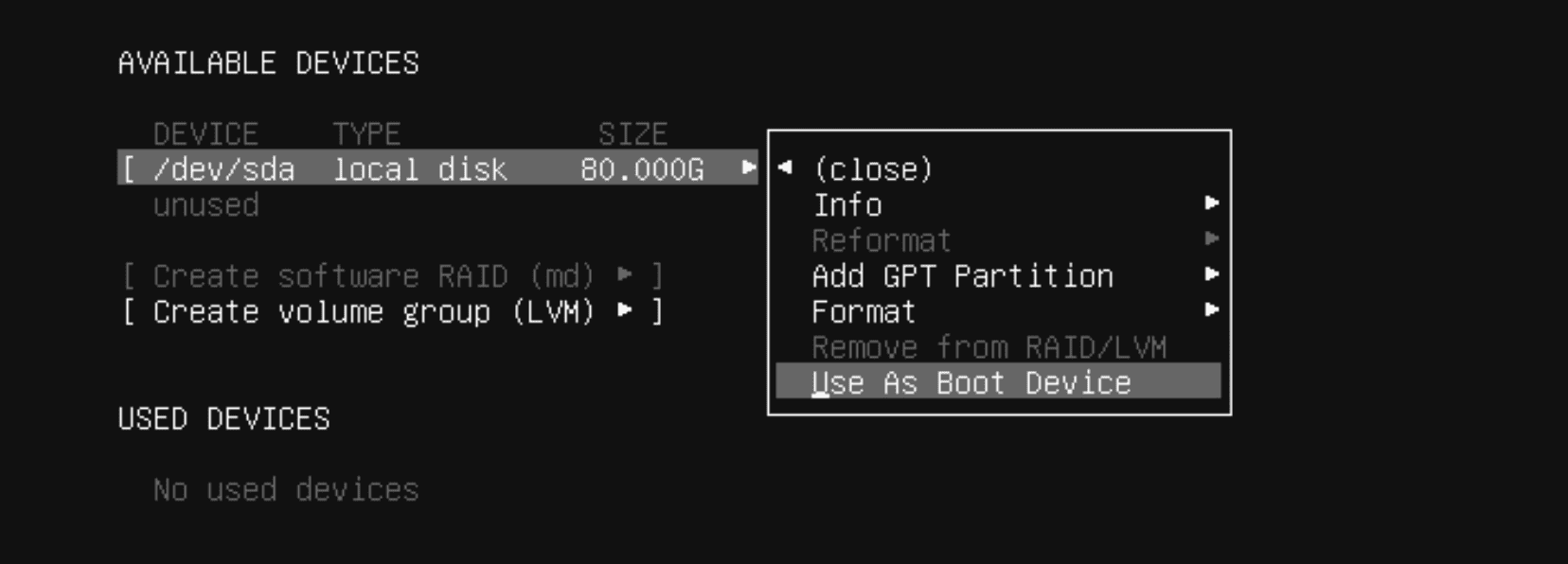
Use As Boot Device
Select Add GPT Partition for an available device.
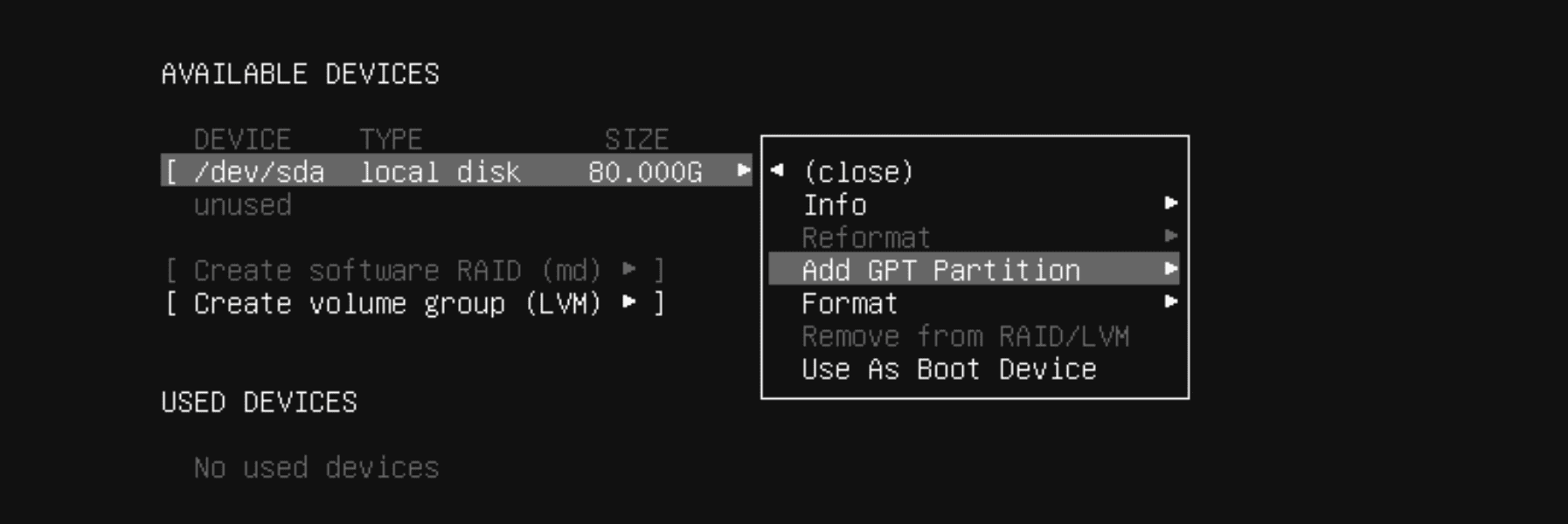
Adding GPT partition
Enter Size. The recommended size is at least 8GB for a new partition.
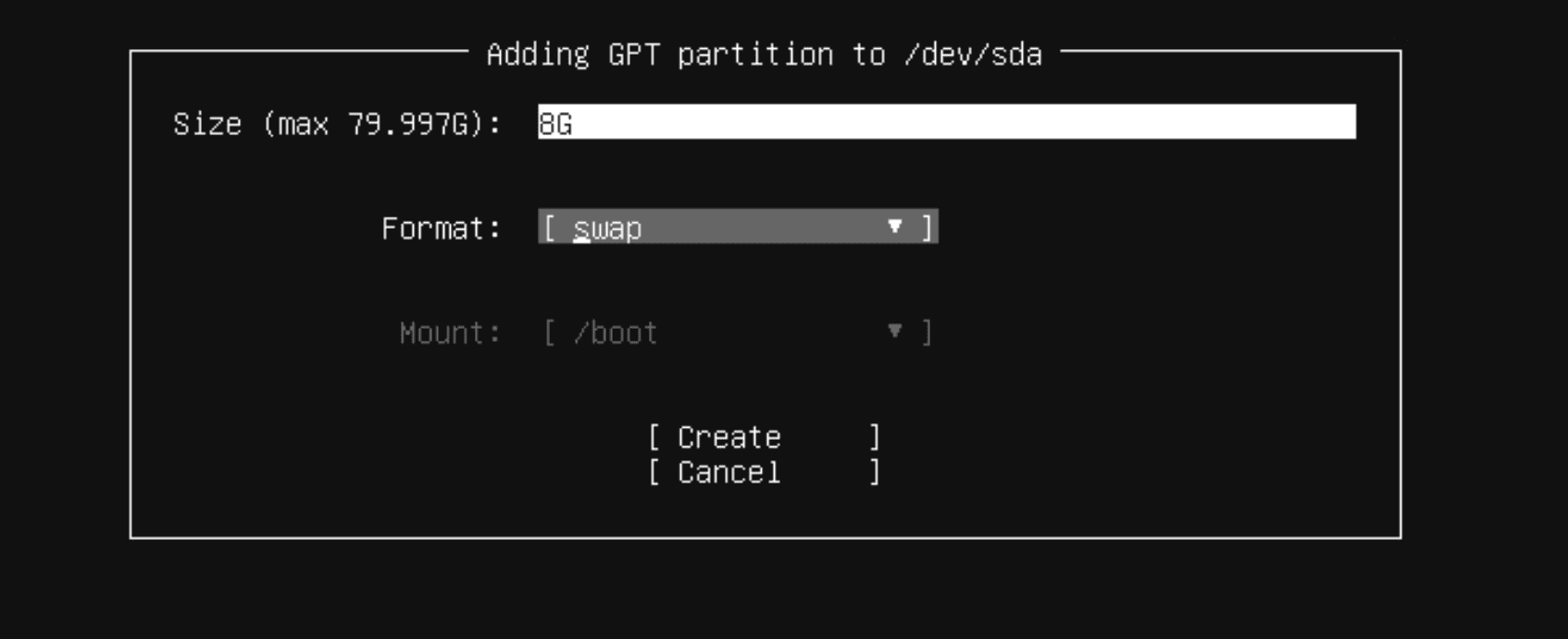
Selecting swap format
Select swap in Format and select Create.
Select Add GPT Partition again for the remaining size.
Select Leave unformatted in Format and select Create. This unformatted partition can be used to hold the logical volume group.
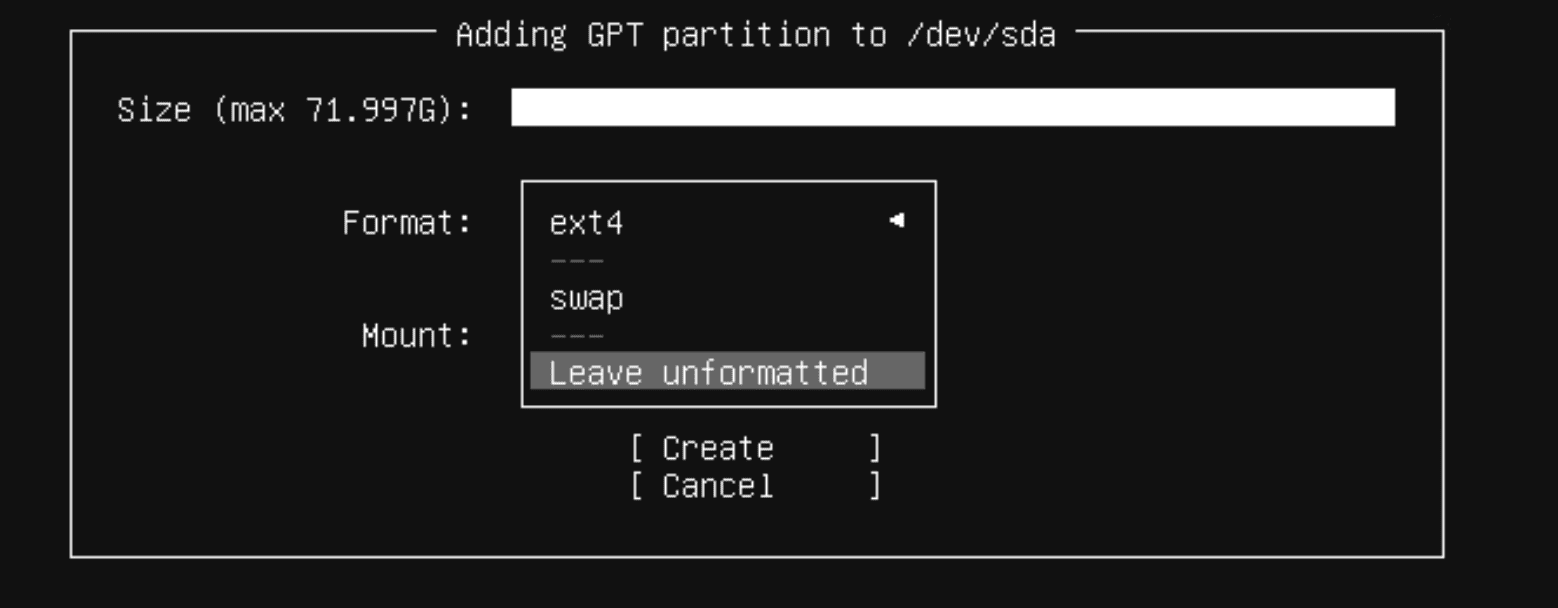
Selecting Leave unformatted format
Select Create Volume Group (LVM) to create a new volume group.
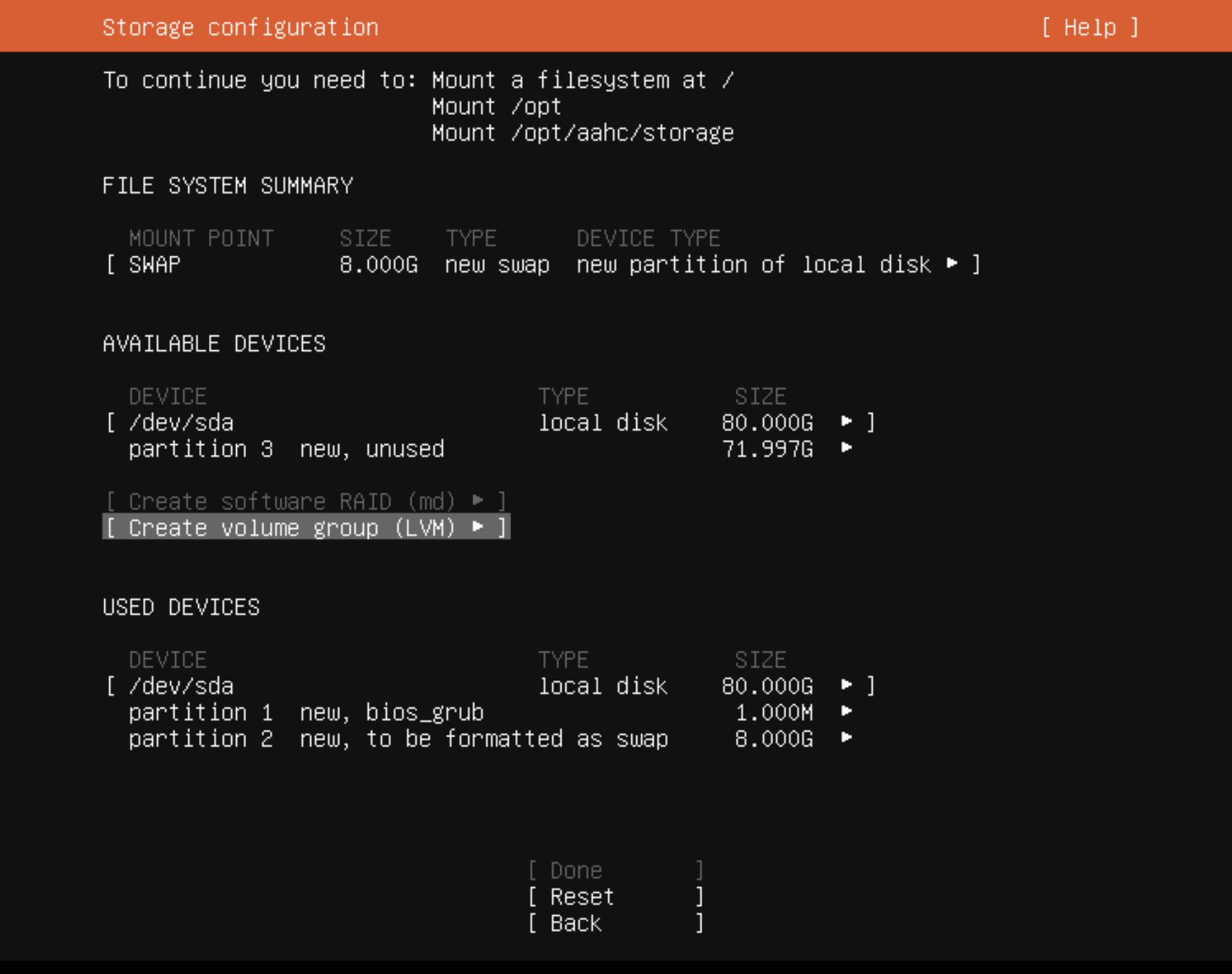
Selecting Create LVM
Note
You can also create software RAID (md) disks.
Enter a name for the volume group and select Create.
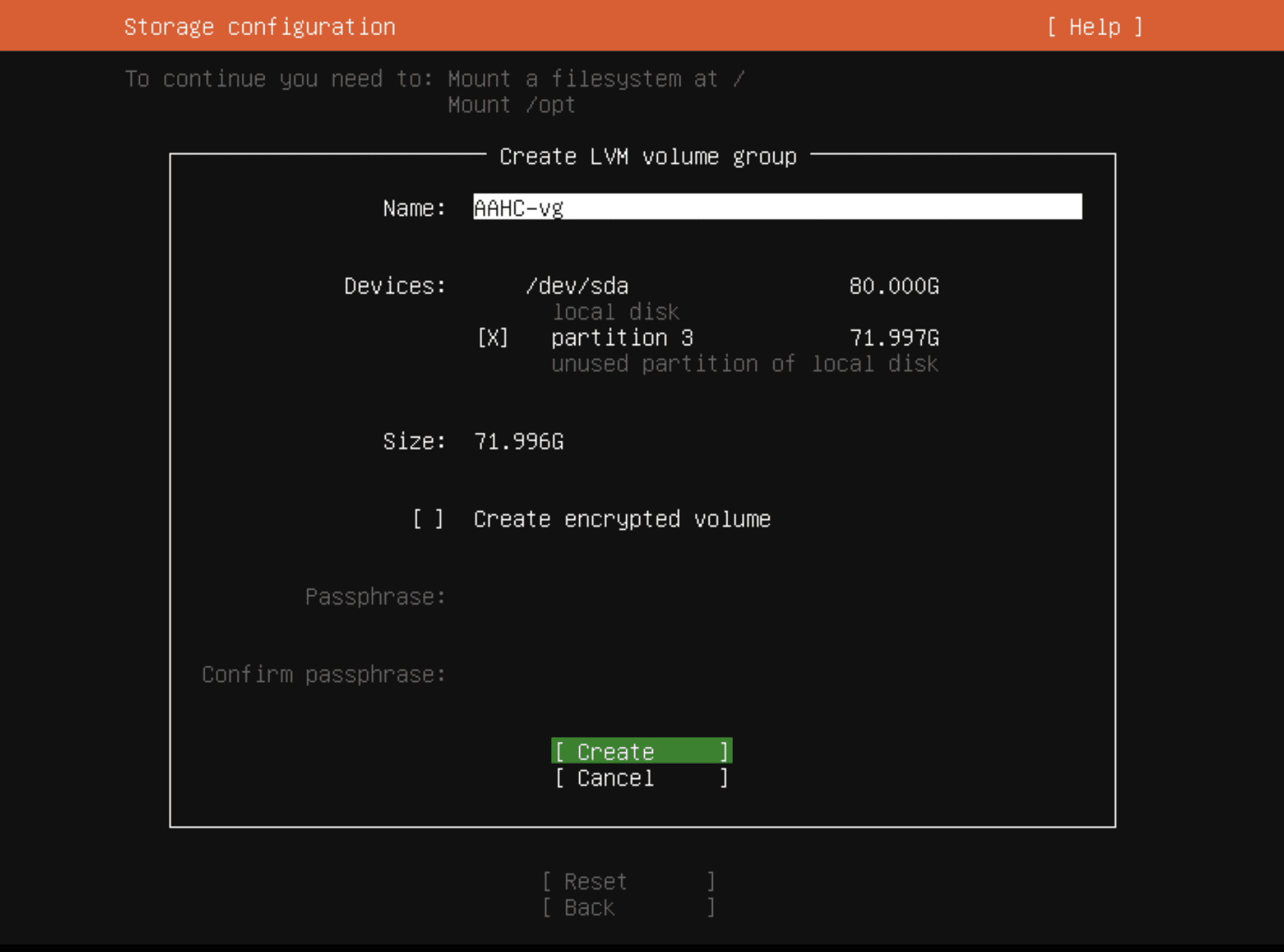
Creating LVM
In the new volume group, select Create Logical Volume.
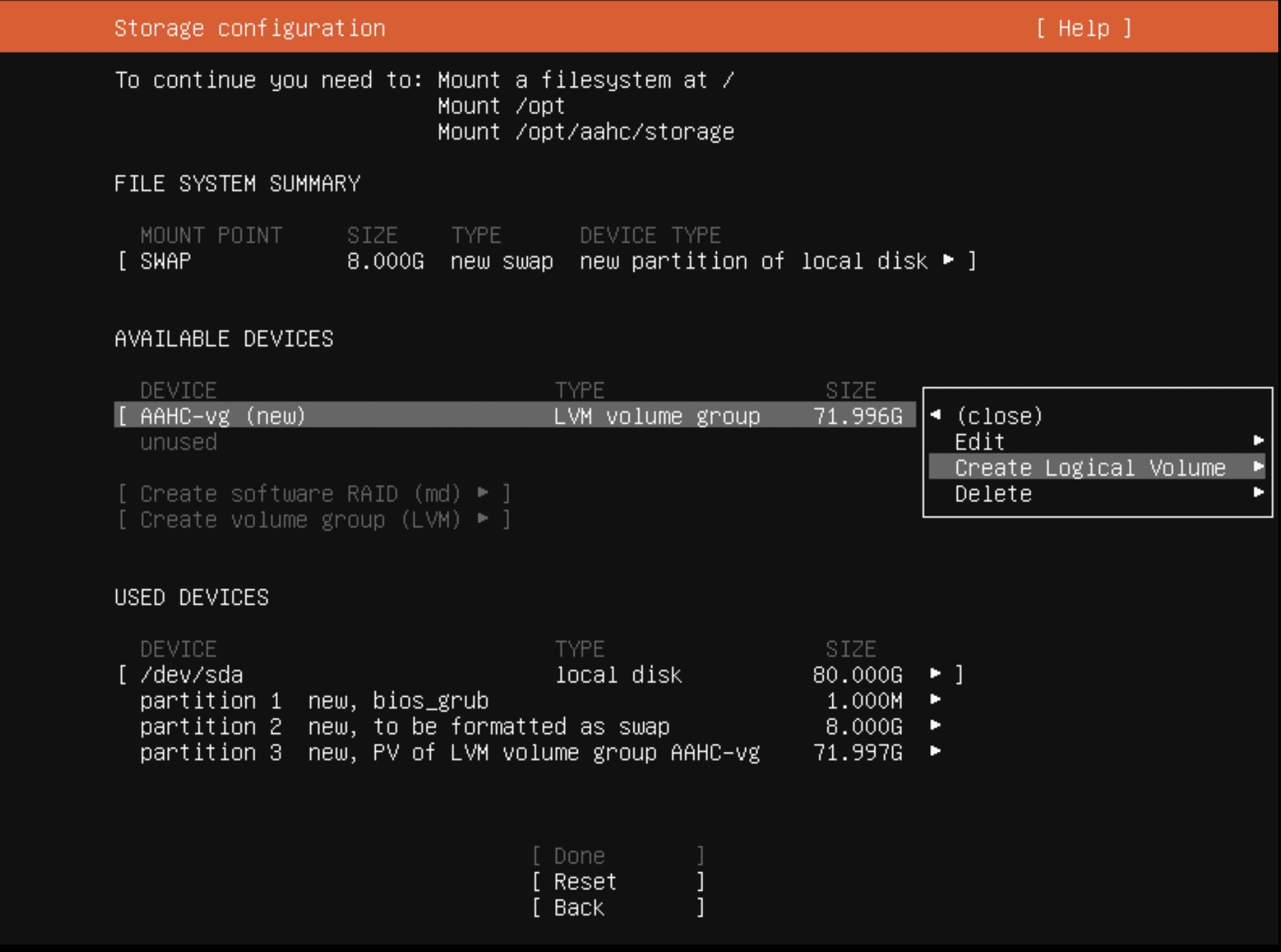
Selecting Create Logical Volume
Enter a Name, Size, Format, and Mount point for the new logical volume.
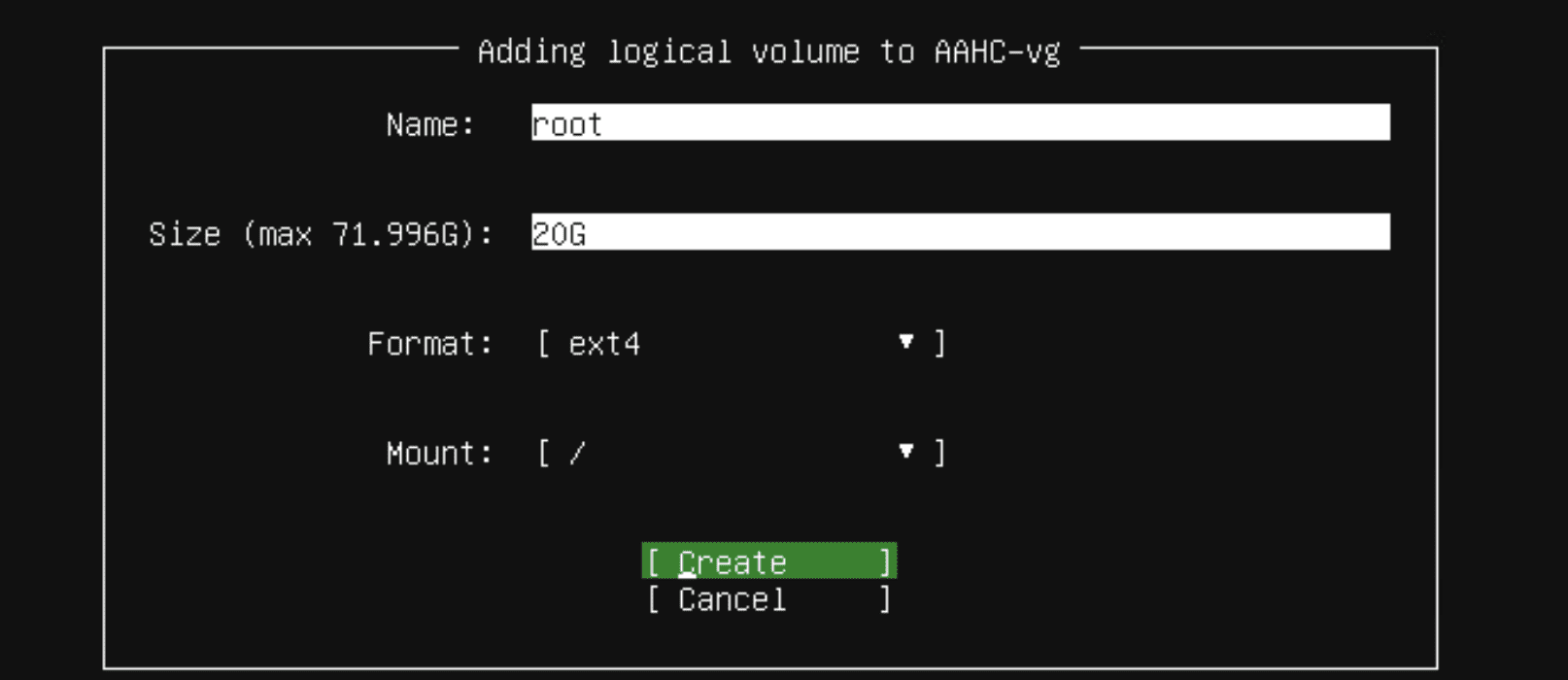
Creating Logical Volume
You must configure at least the following logical volumes before you can proceed with the installation:
Name |
Mount point |
Minimum size |
|---|---|---|
boot |
/boot |
1GB |
root |
/ |
20GB |
application |
/opt |
20% |
storage |
/opt/aahc/storage |
60GB |
Note
The installer automatically provides the names and mount points for the next default volume group every time you select Create Logical Volume.
Select Done after finalizing your storage configurations.